
Still relying on just passwords to protect your business? It’s time for an upgrade.
Cybercriminals are targeting small businesses more than ever, and weak login credentials are one of their favourite entry points. Multi-Factor Authentication (MFA) adds an extra layer of security that can stop them in their tracks—even if they’ve got your password.
This guide breaks down what MFA is, why it matters, and how you can implement it easily across your business.
Why Multi-Factor Authentication (MFA) Matters for Small Businesses
Nearly half of all cyberattacks target small and mid-sized businesses. One stolen password can lead to data breaches, financial losses, and serious downtime. MFA helps reduce that risk.
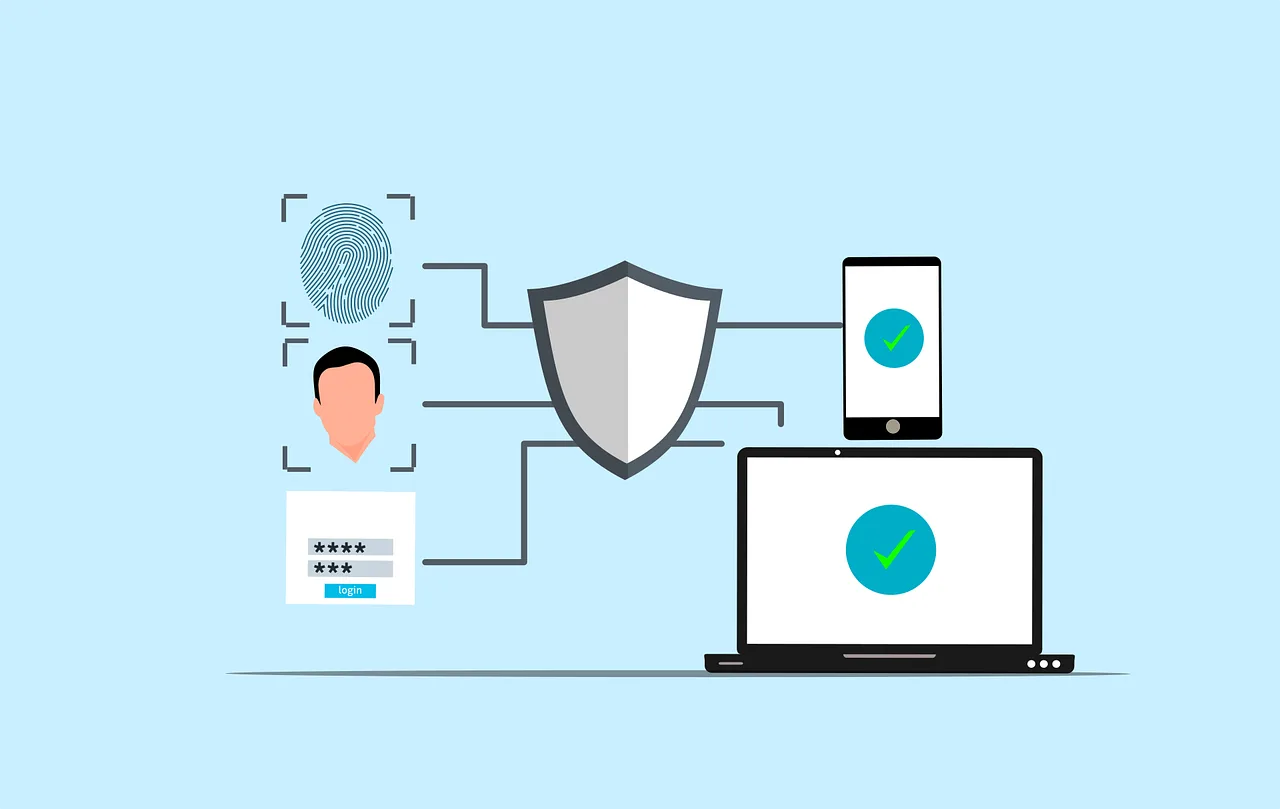
Instead of relying on just one method to log in, MFA uses two or more types of authentication:
- Something you know – like a password
- Something you have – like a phone or security token
- Something you are – like a fingerprint or face scan
It’s a simple but powerful way to keep your systems safe.
For more advice on this topic, check out our MFA tag.
How MFA Works: The 3 Key Factors
Something You Know: This is your password or PIN. It’s your first layer of defence—but on its own, it’s vulnerable to phishing, brute force attacks, or even being guessed.
Something You Have: This could be a device or app that generates a time-sensitive code—like Google Authenticator, Microsoft Authenticator, or a smart card/token. It ensures that only someone with physical access to your device can log in.
Something You Are: Biometrics such as fingerprint, face, or voice recognition. These are unique to you and hard to replicate—offering an extra layer of protection.
How to Roll Out MFA in Your Business
1. Assess Your Current Setup
Start by reviewing your existing systems and identifying where MFA is most urgently needed—such as email, finance apps, cloud services (Microsoft 365, Google Workspace), CRMs, and remote access tools.
2. Choose the Right MFA Tool
There are plenty of options, depending on your budget and tech stack:
- Google Authenticator / Microsoft Authenticator – free, easy to set up
- Duo Security – flexible and user-friendly
- Authy – good for multi-device access
- Okta – ideal for scaling with business needs
Pick one that’s easy for your team to adopt and integrates well with your existing tools.
3. Train Your Team
Don’t just turn on MFA and hope for the best. Offer simple guides or short training sessions. Make sure everyone knows why it matters and how to use it.
4. Set It Up Across Key Systems
Start with the most sensitive platforms—like email and cloud file storage. Then expand to all accounts handling client data, finance, or admin access.
5. Monitor and Update Regularly
- Reassess MFA coverage as your business changes
- Update lost/stolen device access promptly
- Review backup and recovery options to avoid lockouts
Common MFA Challenges (and How to Solve Them)
- Staff Resistance: Some staff may find MFA annoying or unnecessary. Combat this with short, friendly training and real-world examples of how MFA blocks cyberattacks.
- Software Compatibility: Not all tools work with every MFA solution. Look for providers with good integration support—or ask your IT provider to help bridge the gaps.
- Cost Concerns: There are plenty of free or low-cost tools available, especially for small businesses. You don’t have to spend a fortune to be secure.
- Device Management: What happens when someone loses their phone? Make sure your chosen MFA tool allows for account recovery or backup codes.
Final Thought: It’s One of the Easiest Wins in Cybersecurity
MFA isn’t just for large enterprises. It’s a cost-effective, powerful way to stop common cyber threats. And once it’s in place, it runs quietly in the background—giving you and your team peace of mind.
Need help implementing MFA or choosing the right security tools? Book a call or learn more about our Cybersecurity services.
Article used with permission from The Technology Press.
Comments are closed